Common Issues
How to Fix Problems While Installing or Opening GTA Mzansi on Android
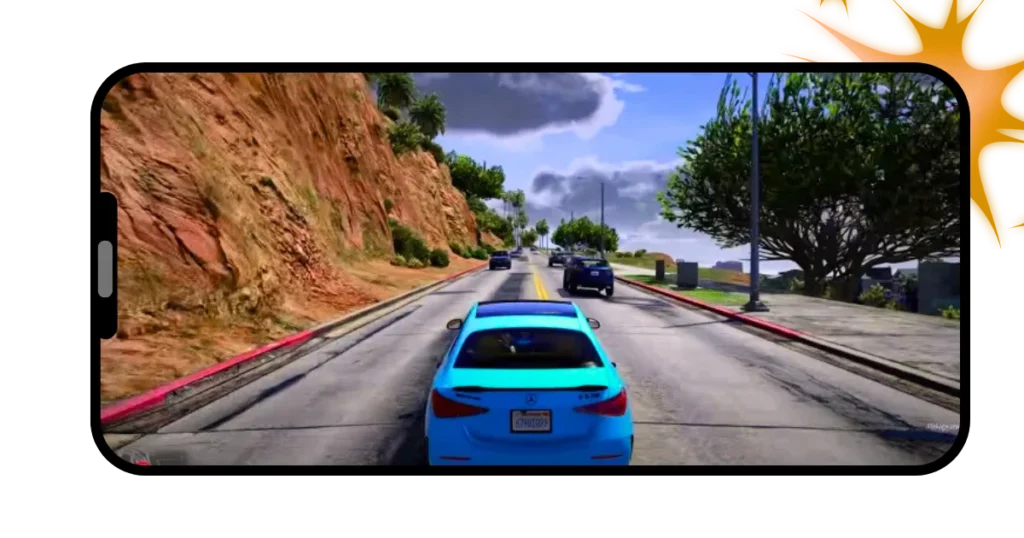
Some users may face issues while installing or opening GTA Mzansi, such as installation errors, the game not opening, a black screen, or crashing after launch. These problems usually happen due to several reasons, e.g., device compatibility, Android version limits, or missing files. However, it is not due to the game itself being broken.
Below are the most common problems and simple solutions regarding the game.
1. Not Installing / “App Not Installed” Error
This issue usually appears when the APK file is not installed properly.
Common reasons:
- Incomplete downloading of APK file
- Not enough free storage on the phone
- Older GTA or similar mod already installed
- Android version not supported
How to fix it:
- Re-download the game using a stable internet connection
- Make sure you have at least 2–3 GB free storage
- Uninstall any old GTA versions before installing
- Check the minimum Android requirements mentioned on the main page
2. Installation Blocked by Phone Settings
Another reason might be the blocking by Android because GTA Mzansi is installed outside the Play Store.
Fix:
- Go to Settings > Privacy / Security
- Open ‘Install unknown apps.’
- Allow installation from your browser or file manager
After installation, you can disable this option again.
3. GTA Mzansi Installed but Not Opening
If the game installs successfully but crashes or closes immediately, the most common reason behind this is the RAM or compatibility.
Possible reasons:
- Low-RAM device
- Unsupported Android version
- Cache conflict on first launch
Solutions:
- Restart your phone before opening the game
- Go to Settings > Apps > GTA Mzansi
- Tap Clear Cache, but remember, do not clear data
- If your phone runs Android 9 or lower, try an older version of GTA Mzansi
Honestly, GTA mods are heavy games. Therefore, older phones may struggle.
4. Black Screen after Opening the Game
This is a common issue with modded GTA games.
Why it happens:
- OBB files not extracted correctly
- The game data folder placed in the wrong directory
- Graphics load issue on low-end devices
Fix:
- Make sure that the OBB folder is placed inside Android / obb
- The folder name must match the game package exactly
- Reopen the game after restarting the phone
5. Stuck on Loading Screen
If the game shows the logo but never loads, the issue is usually related to permissions or background limits.
Fix:
- Allow storage permission manually
- Disable battery optimization for GTA Mzansi
- Try opening the game with internet ON for the first launch
Remember that some devices block background processes aggressively, especially Xiaomi and Oppo phones.
6. “Problem Parsing the Package” Error
This error means the APK is not compatible with your device.
Solutions:
- Check if your phone supports ARM64 architecture
- Make sure Android version meets the requirement fully
- Download the correct version (normal or lite)
If your phone is older, lite versions usually work better.
7. Google Play Protect Warning
Play Protect may show a warning because GTA Mzansi is a third-party game.
What to do:
- If downloaded from mzansiapk.com, you can tap “Install Anyway”
- Scanning the file with antivirus is optional but recommended
Final Tips for Smooth Gameplay
Keep these points in mind before installing the GTA on your phones:
- Close other apps before launching the game
- Low-end phones may experience lag as this is a normal behavior
- Always use the version that matches your Android device
- Avoid mixing files from different GTA mods
All the phones cannot run heavy GTA mods smoothly. It is necessary to match your phone’s requirements with the game. Following the steps above will fix most GTA Mzansi installation and opening problems.
Download the Mzansi or other versions on our download page.