How to Fix the GTA Mzansi Kasi Vibes Black Screen and Get Back Into the Game
Stuck on a black screen in GTA Mzansi Kasi Vibes? Here’s how to fix it in minutes, no tech skills needed.
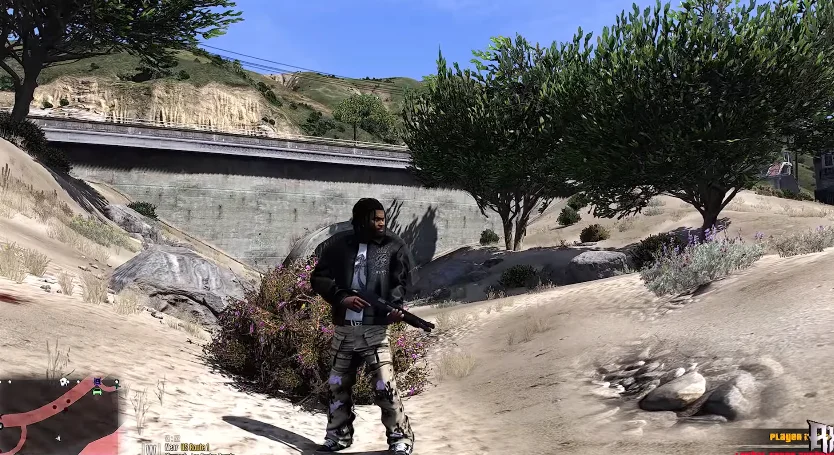
You open the app. The game logo loads. Then nothing. Just a black screen.
This problem hits gamers from Soweto to Khayelitsha. It does not matter if you play on a Samsung or an Itel phone. The fix is often simple. You just need to know where to look.
This guide walks you through real solutions to the GTA Mzansi Kasi Vibes Black Screen issue. No wasted steps. No confusing tech talk. Just clear fixes any newbie can follow.
Why the GTA Mzansi Kasi Vibes Black Screen Happens in the First Place
The black screen usually means the game files did not load properly. This happens for a few common reasons.
Your phone might not have enough RAM. Many players in townships like Alexandra use budget phones with 2GB RAM. This game needs steady memory to run all its features.
Your OBB file could be corrupted. This file holds textures, sounds, and map data. If it did not download fully, the game struggles to open.
Your storage might be full. If your phone is packed with photos and other apps, the game cannot load new data properly.
Your device could be overheating. Load shedding often means charging your phone in a rush before the power goes off. A hot battery can cause apps to freeze or crash.
Fix One: Clear the Game Cache
Go to your phone settings. Find Apps, then locate GTA Mzansi. Tap Storage. Then tap Clear Cache.
This does not delete your saved progress. It only removes temporary files that may have gotten damaged. Many players near Diepkloof report this alone solves the black screen problem.
Restart your phone after this step. Then open the game again.
Fix Two: Reinstall the APK and OBB Files
Sometimes the cleanest fix is starting fresh. Delete the current game folder. Download the APK and OBB files again from a trusted source.
Make sure your download finishes completely. A weak signal near busy spots like Maponya Mall can cut downloads short. This leaves you with a broken file.
Once downloaded, place the OBB file in the correct folder. It usually goes under Android, then OBB, then the game folder name. Check a setup guide if you are unsure of the exact path.
Fix Three: Free Up Storage Space
Your phone needs breathing room to run this game well. Delete apps you no longer use. Move photos and videos to cloud storage or an SD card.
Aim for at least two GB of free space. This gives the game room to load textures and save data without crashing.
Fix Four: Lower the Graphics Settings
High graphics settings strain low end phones. If your phone has 2GB RAM or less, this step matters a lot.
Open the game settings before it fully loads, if possible. Turn down shadow quality and draw distance. Turn off any extra visual effects. This reduces the load on your processor and graphics chip.
Players around Mitchells Plain and Khayelitsha with entry level Android phones often see big improvements after this change.
Fix Five: Update Your Android System
An outdated operating system can clash with newer game updates. Check your phone settings for available system updates.
Connect to stable Wi-Fi first. Public hotspots near taxi ranks can be slow and unreliable for large downloads.
Install any pending updates. Restart your device once finished. Then try launching the game again.
Fix Six: Check Your Phone Storage Type
Some phones run games straight from internal storage. Others allow apps to run from an SD card. Running heavy games from a slow SD card can cause loading failures, including black screens.
If possible, move the game to internal storage. This gives faster read and write speeds. Your phone handles the game data more smoothly this way.
Fix Seven: Avoid Running the Game During Overheating
Township summers get hot, especially inland areas like Soweto and Alexandra. A phone that overheats will often show a black screen or freeze completely.
Give your phone a break between long gaming sessions. Avoid charging and playing at the same time. Keep your phone out of direct sunlight while gaming.
When None of These Fixes Work
If you tried every step and the screen stays black, the problem may be your device itself. Some older phones simply cannot handle the game’s requirements.
Check the minimum requirements listed by the game developers before installing again. Compare these against your phone’s specs. This saves you time and data costs.
You can also search official forums or trusted YouTube tutorials from South African gaming creators. Many test these fixes directly on local networks like MTN and Vodacom, which matches real conditions here in Mzansi.
System Requirements
Make sure your Android device has the following requirements to run GTA Mzansi Kasi Vibes.
Minimum Requirements | Recommended Requirements |
|---|---|
Android Version: Android 5.0 (Lollipop) or higher | Android Version: Android 8.0 or higher |
RAM: 2 GB RAM | RAM: 4 GB RAM or more |
Storage: 3 GB free space (APK + OBB) | Storage: 5 GB free space |
Processor: Quad-core 1.4 GHz | Processor: Octa-core 2.0 GHz |
GPU :Adreno 306 / Mali-T760 or equivalent | GPU: Adreno 530 / Mali-G76 or better |
Final Thoughts
A black screen feels frustrating, especially when you just want to cruise through your favorite kasi themed missions. The good news is most causes are fixable at home, without spending money on repairs.
Start with the cache clear. Move to storage checks. Then try the settings and update fixes if needed. As a result, you will experience no GTA Mzansi Kasi Vibes black screen issue.
Most players get back into the game within a few minutes using these steps. Your township adventure does not have to end at a black screen.
Frequently Asked Questions
Download GTA Mzansi 2026
Latest Kasi Vibes Edition : Free – Safe – No Password